Key prompts system can show a premade icon for a key . Just drag and drop and select the key that you need.
Examples in KeyPromptScreen and WB_ActionMapping widget
There are Two ways that you can use keyprompts
- Use keyprompt widget:
Add a keyprompt widget then select platform and key from details panel.

- Use as rich text block image in between text:
Add your desired platfor decorator to a rich text block
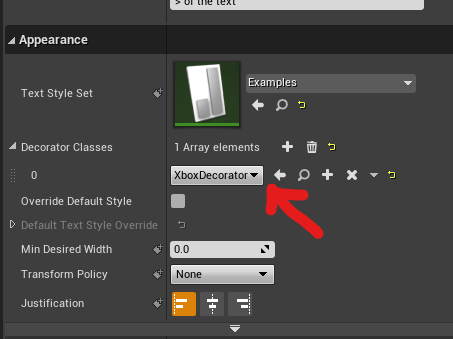
Enter your image ID in between text in desired place like this: <img id="XboxSeriesX_Dpad_Down"></>
You can lookup desired image id in data tables located in TitanUMG\Content\KeyPrompts\KeyboardAndMouse
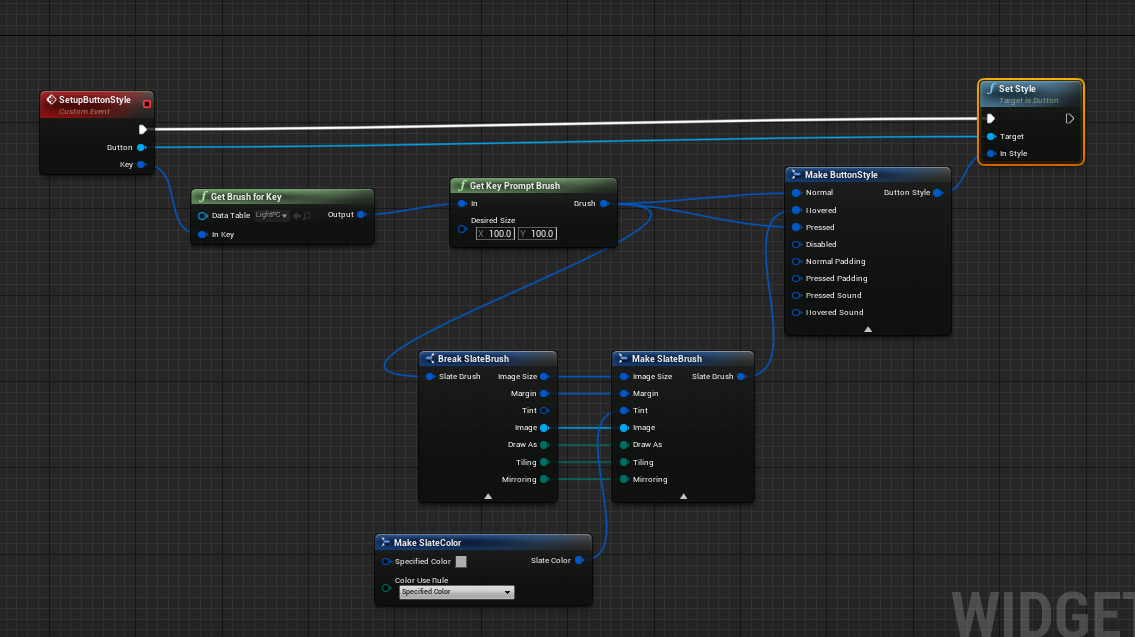
Get Brush from key
You can get brush for a key
Adding custom key prompts:
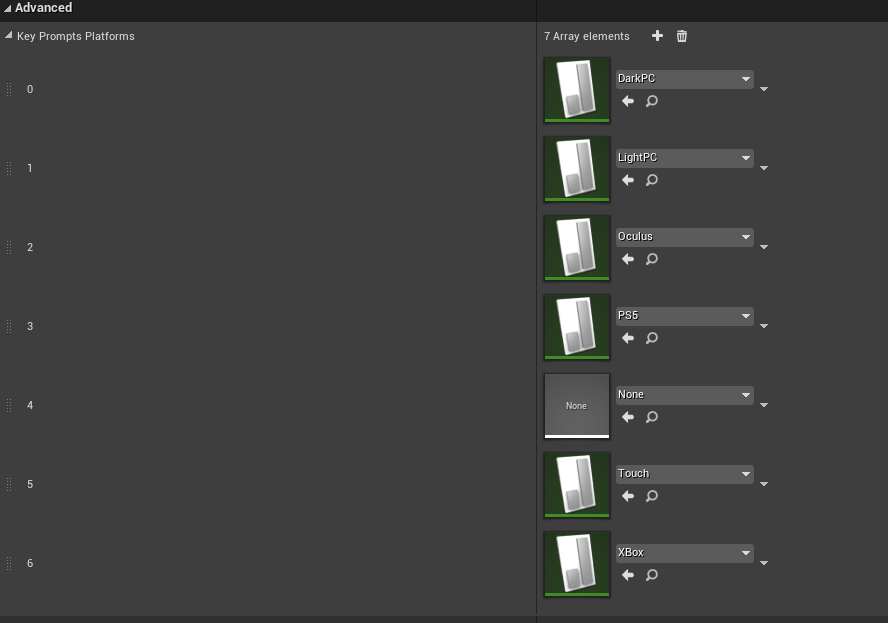
You can add your own key prompts to the sytem. Create a data table with row structure of TitanRichImageRow, Populate it and add it to array located in TitanUMG project settings
Extra Platforms
You can get the icons for extra platforms for TitanUMG here and for KeyPromptsIcon Plugin here If you have the lisence to use the icons . Paste the folder on top of existing folder and add the data tables to array in project settings!